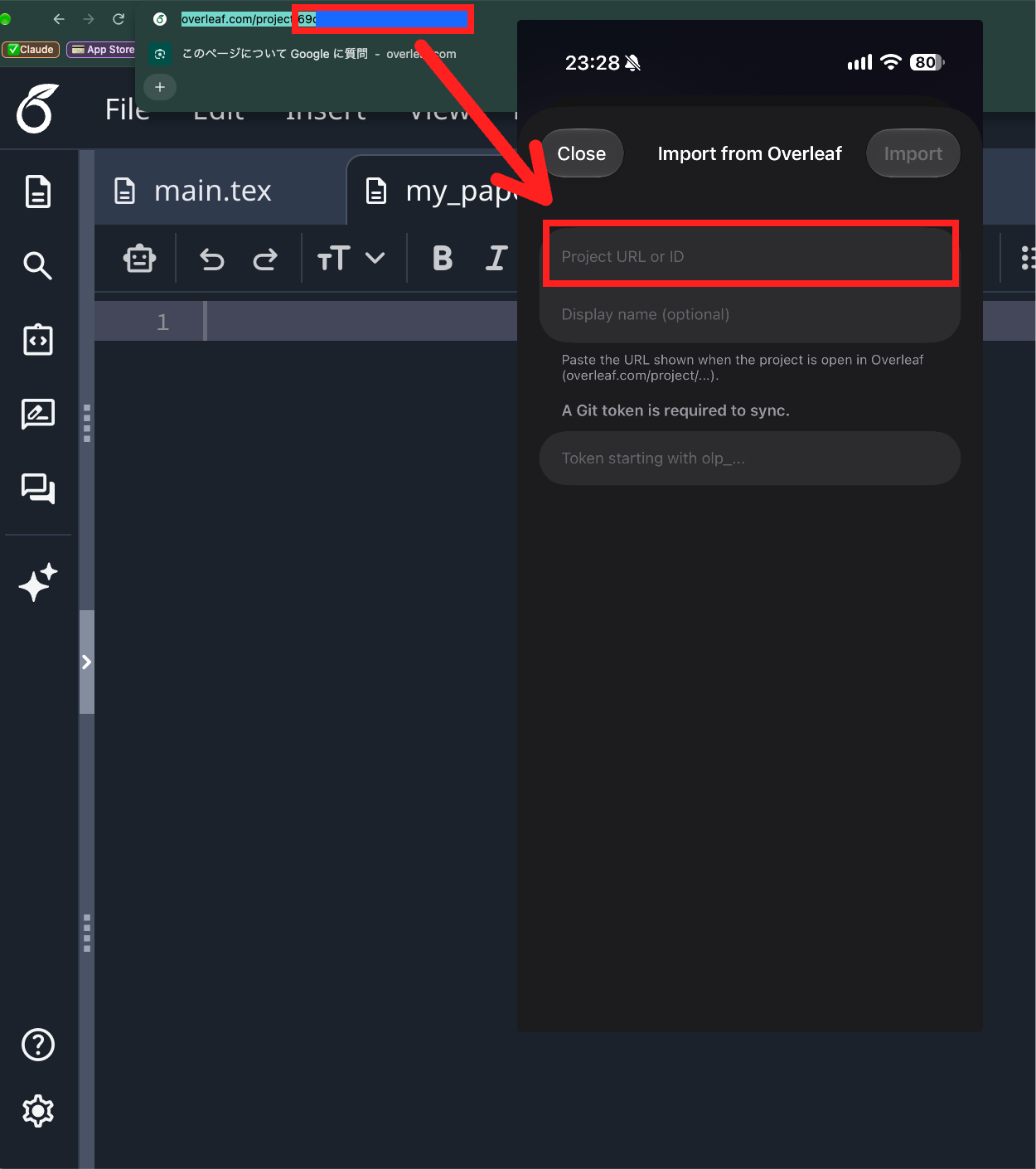
OVERLEAF CONNECTION
Import an Overleaf project
You need two pieces of information to connect Overleaf and TeX Go. You can get both from inside Overleaf.
Authentication token
A string that lets TeX Go connect to your Overleaf account. It looks like olp_xxx.
Project ID
The part of the project URL that comes after project/.
STEP 1
Get an authentication token
- 1
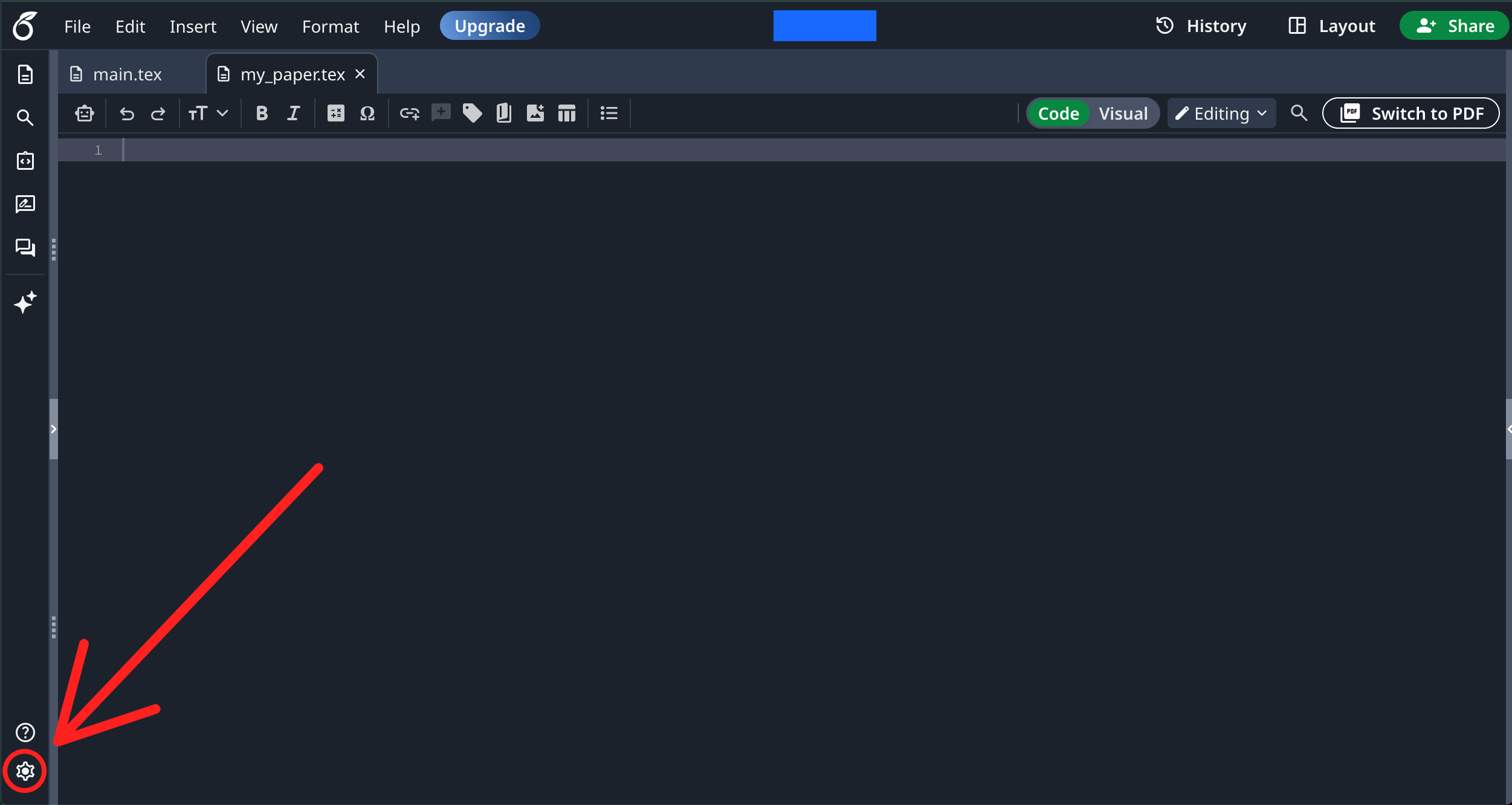
Open settings
Click the gear icon at the bottom left.
- 2
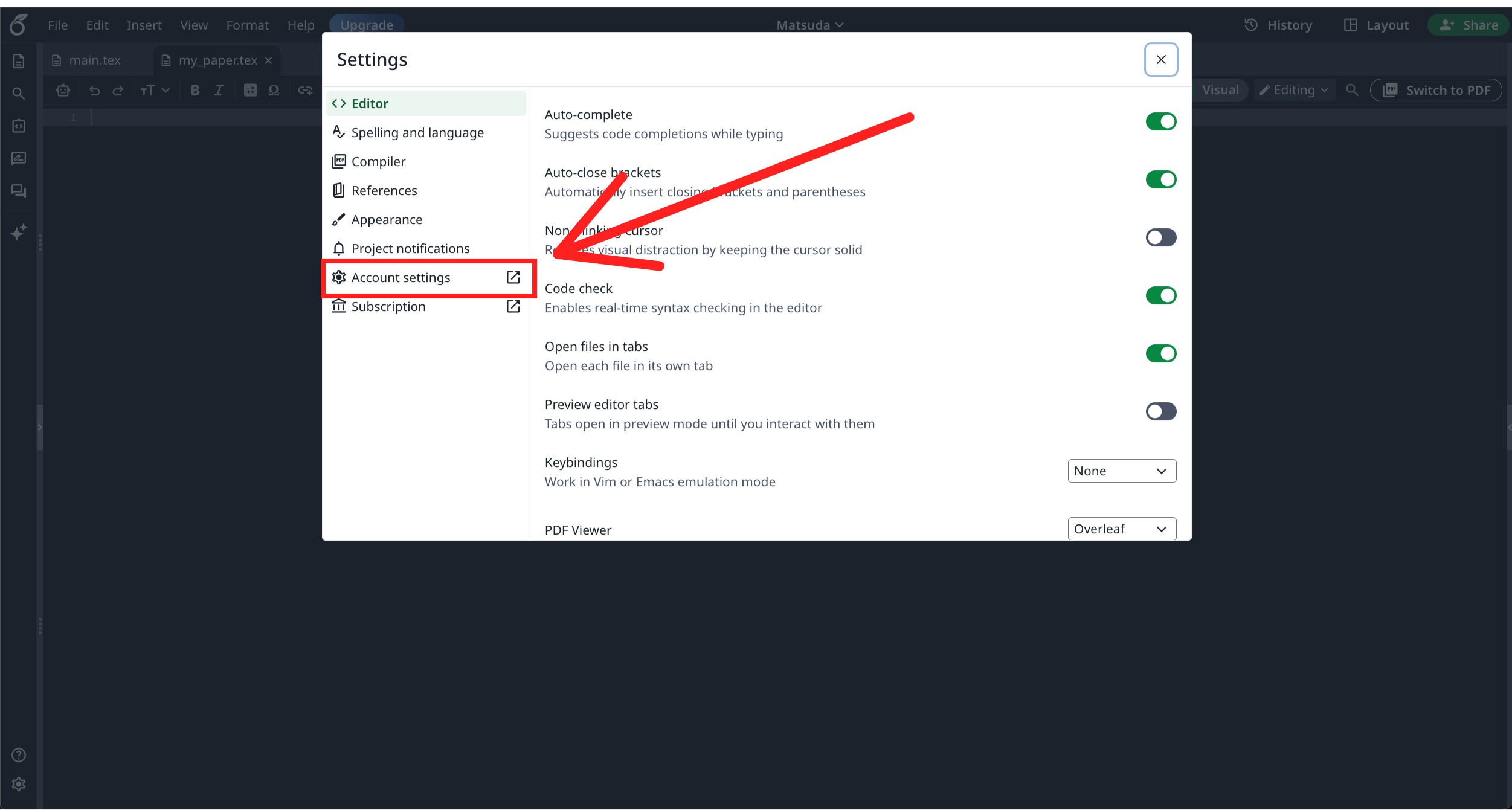
Open Account settings
In the settings screen, choose Account settings from the left menu.
- 3
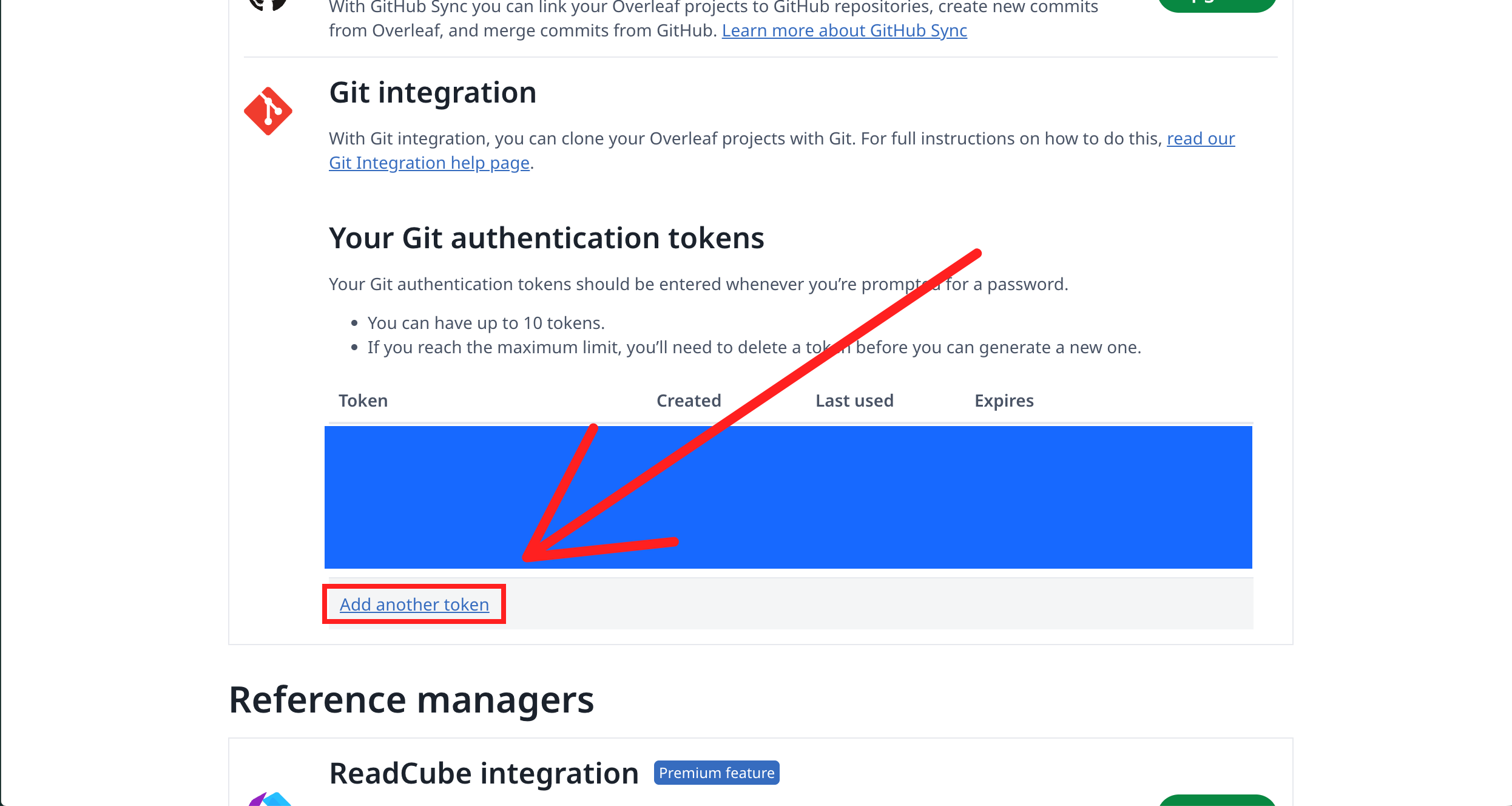
Open Git Integration
Scroll down to the Your Git authentication tokens section.
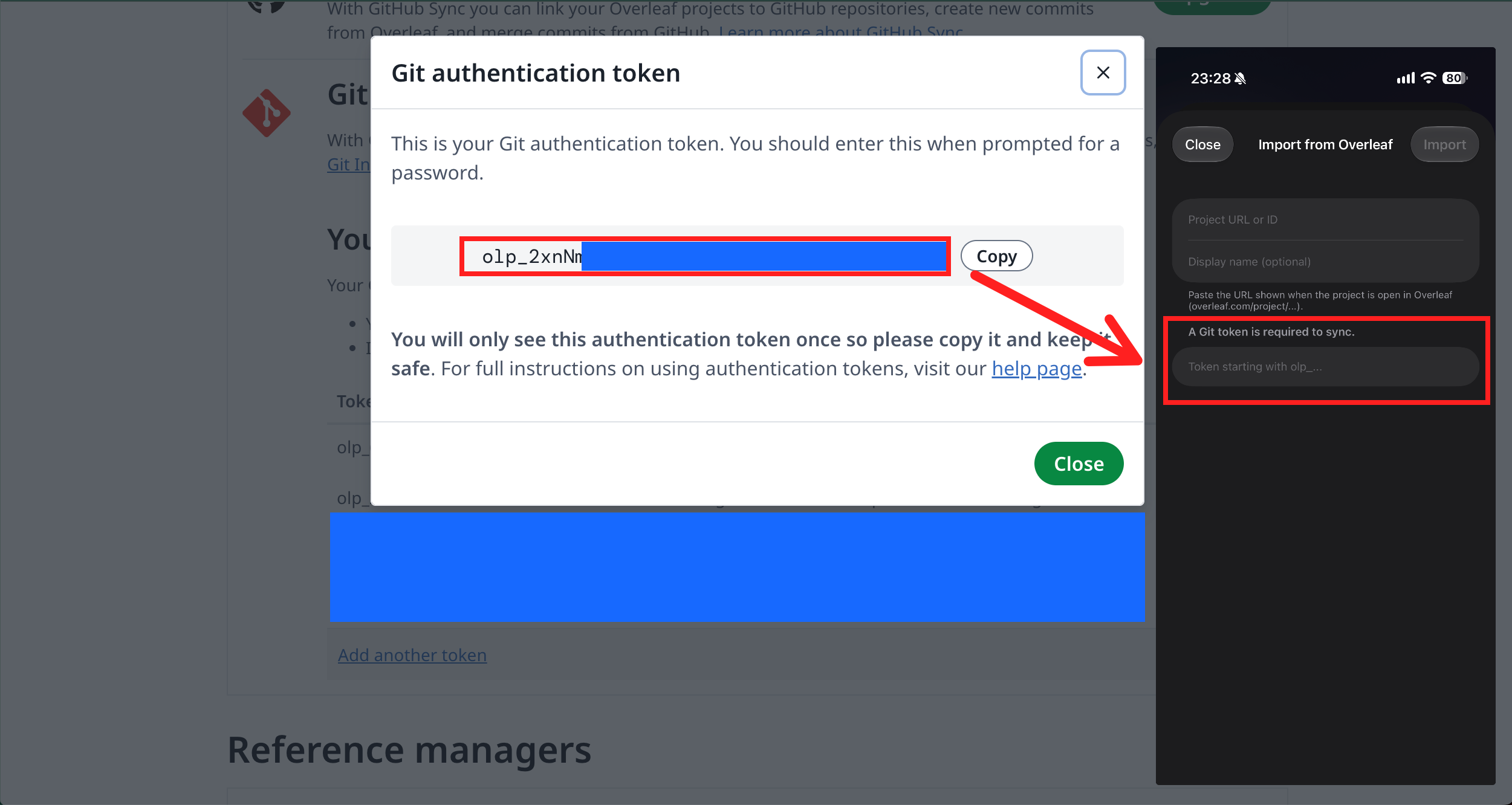
- 4
Create a token
Click Create token, then copy the string that starts with olp_.
- 5
Copy the token
Copy the string and paste it into TeX Go.
STEP 2
Get the project ID
- 1
Open the project to import
In Overleaf, open the project you want to bring into TeX Go.
- 2
Copy what comes after /project/
In the browser address bar, the text after /project/ is the project ID.
- 3
Enter it in TeX Go
Paste the project ID into the input field in TeX Go, then press Import.